If your once snappy phone now pauses every time you open an app, you are far from alone. Almost every Android phone slows down as the months go by. Storage fills with photos and downloads, more apps run in the background, and newer updates ask more of older hardware. The encouraging news is that most of this is fixable in a few minutes, and you will not need to spend a single penny to feel the difference.
Here are twelve simple ways to speed up your Android phone, arranged from the easiest quick wins to the more advanced steps. Try them in order and stop once your phone feels fast again.
1. Restart your phone
It sounds almost too simple, but a restart clears out memory and shuts down apps that are misbehaving quietly in the background. If you are the kind of person who never turns the phone off, this is your starting point. Make it a habit roughly once a week and you will notice fewer slowdowns over time.
2. Free up storage space
A phone that is almost full will crawl. Aim to keep at least a tenth of your storage empty, and ideally a fifth. Delete old videos you have already shared, clear out the downloads folder, and remove the pile of screenshots you no longer need. Moving your photos to a cloud service frees up the most space of all, and our guide on how to transfer photos from your Android phone walks you through every option.
3. Remove apps you never open
Every app you install can run in the background and take up room, and the same clutter can quietly drain your data, so it is worth learning how to save mobile data on Android too. Scroll through your app drawer with an honest eye and uninstall anything you have not opened in months. You can always download it again later if you miss it, and your phone will thank you for the breathing space.
4. Disable the bloatware you cannot delete
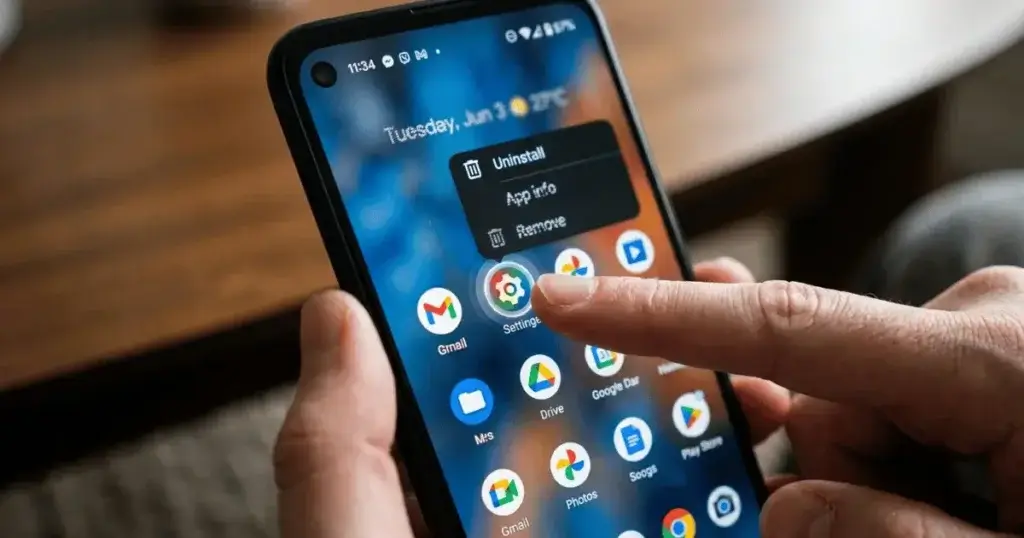
Some apps came preinstalled and refuse to be removed, but you can still stop them. Open Settings, tap Apps, choose the app you do not want, and pick Disable. This stops it from running and frees up memory, which is one of the quietest ways to make a budget phone feel quicker.
5. Clear the cache on slow apps
Apps build up temporary files over time, and those files can make them sluggish. If one app in particular feels slow, open Settings, tap Apps, choose that app, tap Storage, and then Clear cache. This is completely safe and will not delete your messages, photos, or login details. It simply gives the app a fresh start.
6. Reduce the animations
This is the trick that makes an old phone feel brand new, and most people have never tried it. First turn on the hidden developer menu by opening Settings, tapping About phone, and tapping the Build number seven times. Then go back to Settings, open System, and find Developer options. Look for the three animation settings and set each one to half speed, or switch them off completely. Your phone will feel instantly faster because it stops waiting for the little sliding effects to finish.
7. Switch off syncing you do not need
If you have several email and social accounts all syncing throughout the day, they quietly use up resources. Open Settings, tap Accounts, and turn off automatic syncing for any account you do not actively rely on. You can still refresh those apps by hand whenever you want.
8. Use the lighter versions of heavy apps
A few popular apps are very demanding on older phones. Many of them offer a lighter version, such as the Google Go apps, that uses less memory and data while still doing the main job. Swapping a heavy social app for its lighter cousin can make scrolling feel smooth again on a phone that was struggling.
9. Keep your apps and system updated
Updates are not only about new features. They often include fixes that make apps run faster and more smoothly. Open the Google Play Store to update your apps, and check Settings, then System, then System update for any software update your phone still supports. Staying current keeps small problems from piling up.
10. Tidy up your home screen
Live wallpapers that move and a home screen crammed with widgets are constantly working in the background. Switch to a plain wallpaper and keep only the widgets you genuinely use. Your phone spends less effort drawing your home screen and more on the things you actually want to do.
11. Hunt down background offenders
Open Developer options again and look for Running services. This shows you exactly what is using memory at this moment. If you spot an app you do not need running constantly, uninstall it or disable it. This is a great way to catch a single badly behaved app that is dragging everything down.
12. Factory reset as a last resort
If you have tried everything and your phone is still slow, a factory reset wipes the clutter and often brings back near new speed. Back up your photos, contacts, and files first, because this erases everything. Then open Settings, go to System, choose Reset, and pick the factory data reset option. Set it up fresh and only reinstall the apps you truly use.
Frequently asked questions
Why is my Android phone suddenly so slow?
Usually it comes down to full storage, too many background apps, or a recent update. Start with the first six steps above and you will fix most cases.
Does clearing the cache delete my photos or messages?
No. Clearing the cache only removes temporary files. Your photos, messages, and accounts all stay exactly where they are.
Do I need a cleaner or booster app to speed things up?
No. Most booster apps do little beyond showing you ads, and some even slow your phone further. The built in steps in this guide work far better.
How often should I restart my phone?
About once a week is a healthy habit and keeps things running smoothly without you having to think about it.
Key takeaways
You really do not need to buy a new phone to enjoy a faster one, but if yours is truly past its best, see our picks for the best Android phones under 200 dollars. Free up some storage, clear out apps and background tasks you do not use, and reduce the animations. Those three changes alone make the biggest difference, and they take only a few minutes. Keep the factory reset in your back pocket for the rare day when nothing else does the job.
For more phone tips and honest reviews, browse our Smartphones section.