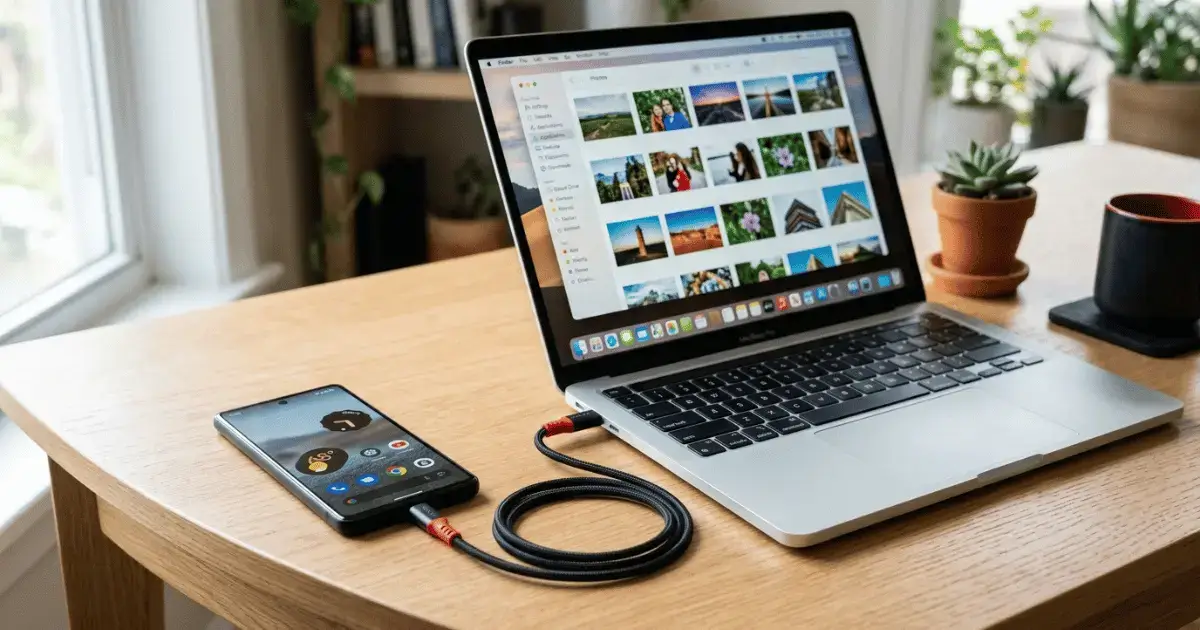
There is a quiet panic that hits when your phone fills up or you get a new one. Clearing photos off is also a great way to free up space and speed up your Android phone. All those photos, the holidays, the birthdays, the everyday moments, are sitting on a single device, and you do not want to lose them. The good news is that moving your pictures is simple once you know the right method for your situation. In this guide you will learn how to transfer photos from Android to a Mac, a Windows computer, an SD card, a Chromebook, and even another phone. Pick the part that matches what you need and follow along.
Before you start: back up first
Whatever method you choose, make a habit of keeping a copy before you delete anything. The safest approach is to let Google Photos back up your pictures to the cloud automatically. Open Google Photos, tap your profile picture, and make sure backup is switched on. With that running, your photos are safe even if something goes wrong during a transfer, and you can reach them from any device by signing in to the same account.
How to transfer photos from Android to a Mac
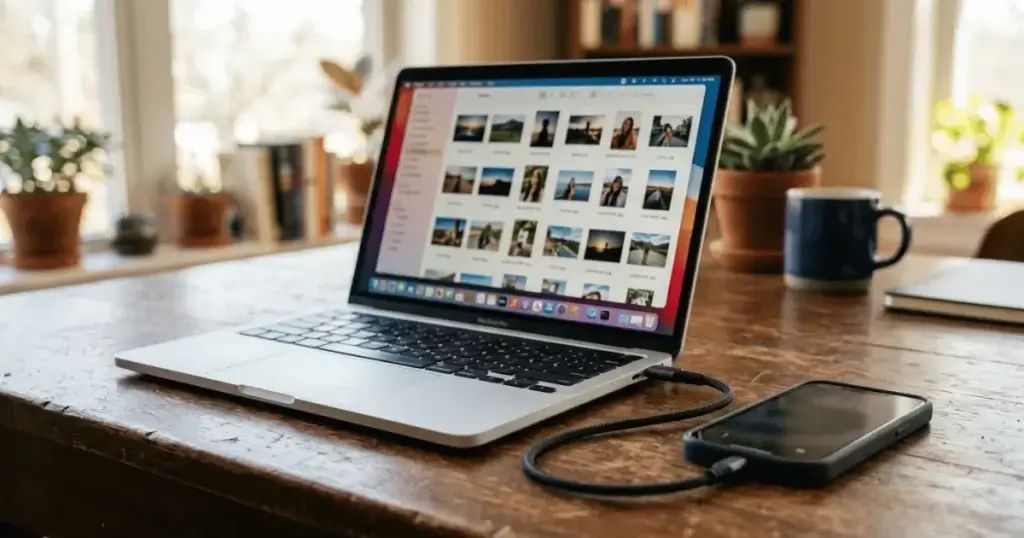
Apple computers do not read an Android phone the way they read an iPhone, so you need one small free tool. Download the Android File Transfer app from the official Android website and install it on your Mac. Once it is installed, connect your phone to the Mac with a USB cable. On your phone, a notification will appear asking what the connection is for, and you should choose the File transfer option. The Android File Transfer window will open on your Mac and show your phone’s folders. Open the folder called DCIM, which is where your camera photos live, and drag the pictures you want onto your desktop or into a folder. That is all there is to it.
How to transfer photos from Android to a Windows PC
Windows makes this even easier because it reads Android phones without any extra software. Connect your phone to the computer with a USB cable, then choose File transfer on the phone when the prompt appears. On the computer, open File Explorer and look for your phone under This PC. Double click it, open the internal storage, and then open the DCIM folder. From here you can copy the photos and paste them anywhere you like, such as your Pictures folder. You can also use the Photos app on Windows to import them all in one go if you prefer.
How to transfer photos from Android to an SD card
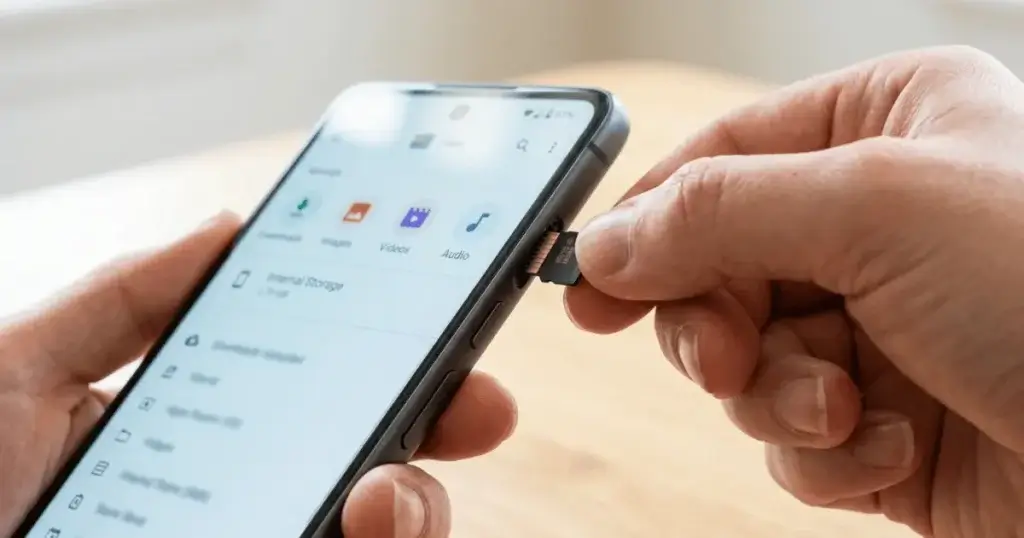
If your phone has a memory card slot, moving photos onto an SD card is a great way to free up space without a computer. Open your file manager app, usually called Files or Files by Google, and find the DCIM folder in your internal storage. Select the photos you want to move, tap the menu, and choose Move. Then pick your SD card as the destination. The photos shift across and your internal storage gets some breathing room. This is also handy because you can pop the card into a new phone later.
How to transfer photos from Android to a Chromebook
A Chromebook handles Android photos smoothly. Connect the phone with a USB cable and choose File transfer on the phone. On the Chromebook, open the Files app, find your phone in the list on the left, and open the DCIM folder. Drag your photos into the Downloads folder or straight into Google Drive. Because Chromebooks lean on Google’s cloud, you can also simply use Google Photos on both devices and skip the cable altogether.
How to move photos to a new Android phone
If you are simply switching to a new Android phone, and our guide to the best Android phones under 200 dollars can help if you are still choosing, you have two easy choices. The first is Google Photos. Back up the photos on your old phone, then sign in to Google Photos on the new phone with the same account, and everything appears ready to view. The second is the built in transfer that runs when you first switch on a new phone. When it asks, choose the option to copy from another device, connect the two phones, select photos and videos, and let it do the work. Both methods keep your memories intact with very little effort.
A few helpful tips
Keep these in mind and your transfers will always go smoothly.
Do not delete the photos from your old phone until you have opened the new copy and checked they are all there.
Use a good quality cable, because a cheap charging only cable sometimes will not move files.
If you have thousands of photos, a cable is faster and more reliable than waiting for a huge cloud upload.
When using Google Photos, the original quality option keeps full detail while the storage saver option uses less space.
Frequently asked questions
What is the easiest way to transfer photos from Android to a computer?
A USB cable is the simplest and most reliable. On Windows it works straight away, and on a Mac you just need the free Android File Transfer app first.
Why will my Mac not show my Android photos?
Macs cannot read Android phones on their own. Install the free Android File Transfer app, then connect the phone and choose File transfer on the phone screen.
How do I transfer photos to an SD card on Android?
Open your files app, find the DCIM folder, select your photos, choose Move, and pick the SD card as the destination. The photos move across and free up your internal storage.
Can I transfer photos without a cable?
Yes. Google Photos moves everything through the cloud, and you can also use a nearby sharing feature to send selected photos between two phones with no cable at all.
Will transferring reduce the quality of my photos?
No, not when you use a cable or move the original files. Quality only drops if you choose the storage saver setting in Google Photos, which gently compresses pictures to save space.
Key takeaways
Moving your photos off your Android phone is far less scary than it feels. For a Windows PC, a cable works instantly. For a Mac, add the free Android File Transfer app and you are set. To free up space, move pictures onto an SD card, and to keep everything safe at all times, let Google Photos back you up in the background. Whichever route you take, always check the new copy before you delete the old one.
For more clear step by step help, visit our How-To & Guides section.